Open your Vault from inside a conversation and every file shows what that particular fan has already seen, bought, or not yet unlocked. It only appears in one-to-one chats, because every label is specific to one person.
Getting started
1. Open your Vault from a conversation
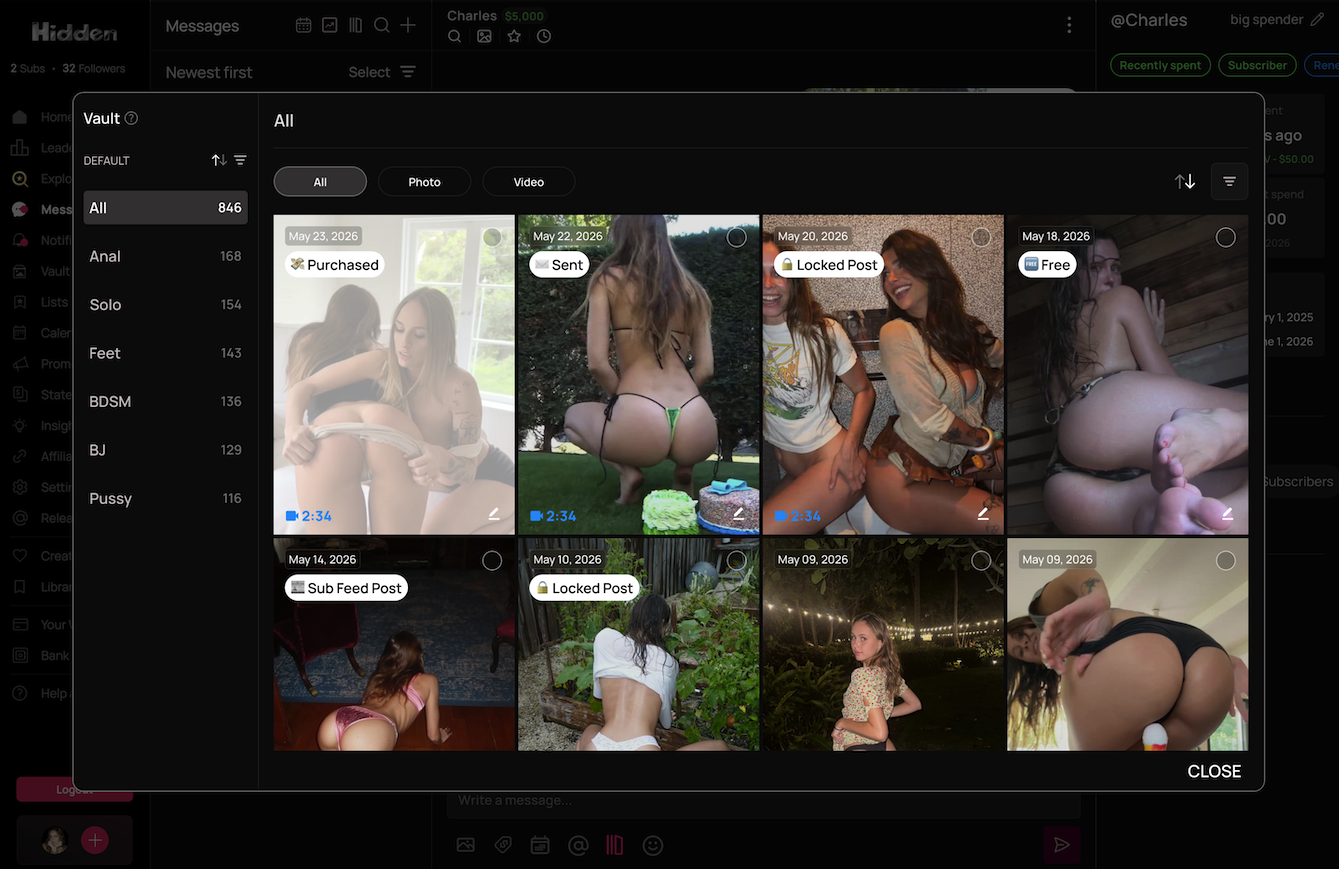
Open a chat, then open your Vault from there. Every file gains context about that fan.
2. Sort and filter
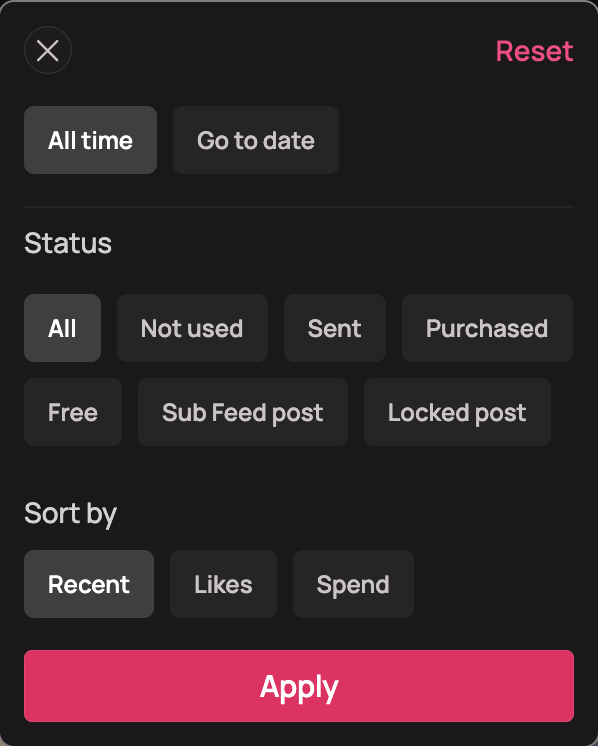
Open the filter to narrow by status, date range, or sort order.
Status filters to All, Not used, Sent, Purchased, Free, Sub Feed post, or Locked post. Sort by orders your files by Recent, Likes, or Spend. You can also limit it to a date range rather than all time.
Filtering to Not used is the fastest way to find something fresh for a fan you talk to often. Sorting by spend puts your best performers first.
3. Check the details
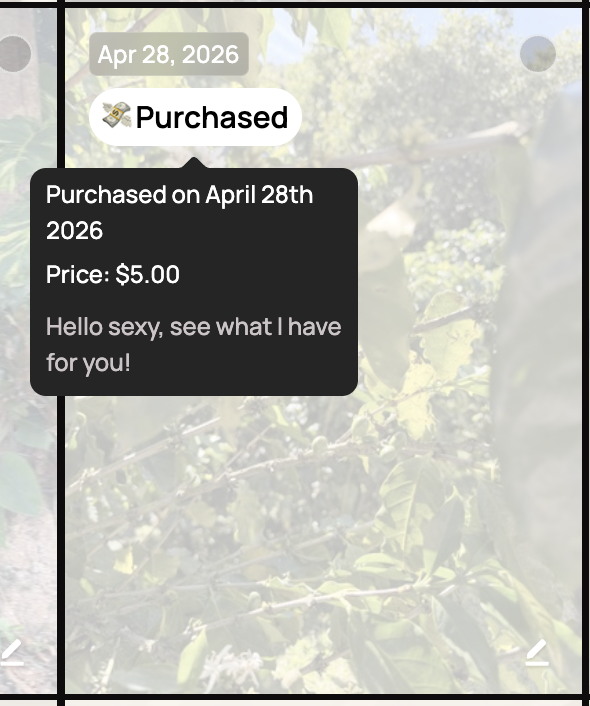
Hover over any status label to see the date, the price, and the caption or message that went with that file, so you know exactly what this fan already received.
The status labels
| Sent | You sent it behind a paywall and they have not unlocked it. There is still a sale on the table. |
| Purchased | They paid to unlock it. Also marked with a white overlay on the thumbnail. |
| Free | It reached them without a paywall, as a free preview or a free public post. |
| Sub Feed post | It was posted to your subscription feed. |
| Locked post | It is in a paid post they have not unlocked. |
| Not used | This fan has never received it in any form. Available as a filter. |
Labels are per fan, so the same file can read Purchased for one person and Sent for another. Nothing here is visible to fans.
What is on each thumbnail
| Top left Changes with your sort: upload date, likes, or total spend. |
| Status label One of the labels above. |
| White overlay Marks anything this fan has already purchased. |
| Duration badge Bottom left on videos. |
| Pencil icon Bottom right. Adds a tag to the file, which saves and shows everywhere in your Vault. |
Common questions
+Where do I find it?
Open your Vault from inside a one-to-one conversation. That is the only place it appears.
+Why does it not show in a mass message?
The labels are specific to one fan, and a mass message goes to many. The same file could be Purchased for one person and new to another, so there is no single history to show. Mass messages use your regular Vault.
+Does a file's status change from fan to fan?
Yes, that is the whole point. The same file reads differently depending on who you are chatting to.
+What is the difference between Sent and Purchased?
Sent means it went behind a paywall and has not been unlocked. Purchased means they paid. Anything still showing Sent is an unclosed sale.
+Can fans see any of this?
No. Labels, overlays, tags, and hover details are all private to you.
Related
Labels not showing? Contact support.
0 of 0 found this helpful
Tips for Creators: how do I grow on Hidden?
Can I promote my Hidden account on social media?
Tags & Categories
Creator Profile Page
Posting
Vault
Didn't answer your question?
Open a ticket and include the specifics. Get support.